
How to Detect a Physical Switch Press in Home Assistant
In John Carpenter’s B-movie, They Live, Roddy Piper puts on a pair of sunglasses and suddenly sees the world as it really is. Billboards that said “CONSUME” and “OBEY” were always there. He just didn’t have the right lens. Aliens walked among the living, indistinguishable from humans, because nobody had the tools to tell them apart.
Your Home Assistant server has the same problem. This article will teach you how to detect a physical switch press in Home Assistant.
Every time a light turns on in your home, Home Assistant records the event. But it has no idea who caused it. Was it you, walking into the kitchen at midnight for a glass of water? Was it an automation reacting to a motion sensor? Was it a dashboard button tap from your phone? From the outside, they all look identical. Your home is full of events and completely blind to intent.
This matters more than it sounds. If you want to build a truly intelligent home, one that learns your rhythms, detects your presence, and knows when a human being has actually touched something, you need to teach it to tell the difference. Specifically, you need to know how to detect a physical switch press in Home Assistant and use that signal to build smarter, more human-aware automations. This article shows you how.
Context: The Hidden Fingerprint on Every Event
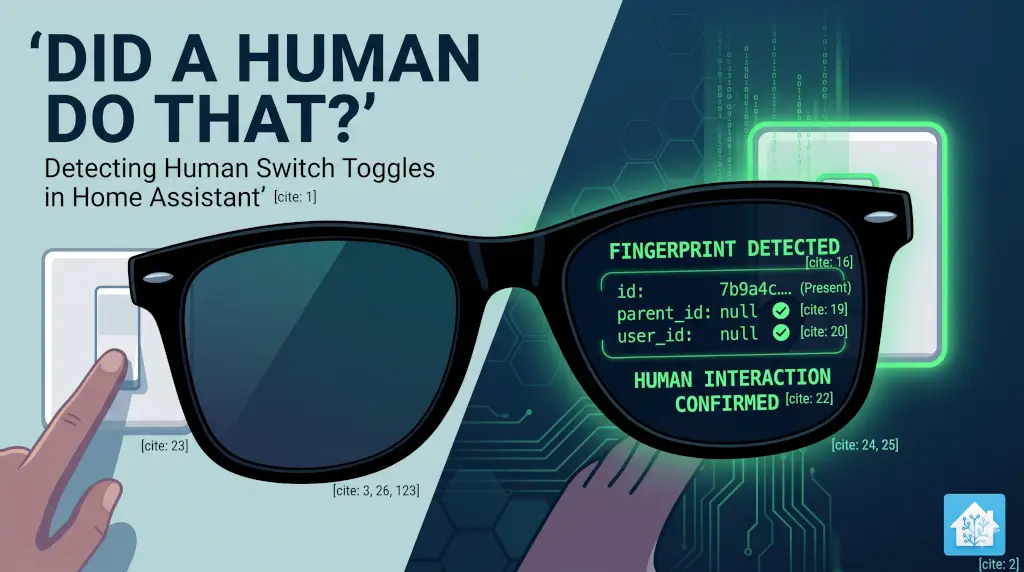
Home Assistant attaches a context object to every state change that flows through the system. Most users never see it. It lives quietly in the event bus, invisible in the UI, and ignored by most automations. But it contains a fingerprint that tells you exactly where a state change came from.
The context object has three fields:
- context.id: a unique identifier, always present on every event
- context.parent_id: set when the change was caused by an automation or script
- context.user_id: set when the change came from the UI, a dashboard button, or a direct service call
Here is what those three fields look like for the four most common types of state changes:
| Source | parent_id | user_id | id |
| Physical switch press | null | null | present |
| Automation or script | present | null | present |
| Dashboard / UI tap | null | present | present |
| HA service call (API) | null | present | present |
Look at the first row. A genuine physical switch press, a human hand on a wall switch, produces a very specific fingerprint. No automation caused it. No dashboard caused it. It came from the device itself, with no parent and no user. That combination is unique. Nothing else produces it.
Your sunglasses are that fingerprint.
The Three-Condition Filter: Detecting a Physical Switch Press in Home Assistant
Once you understand what the fingerprint looks like, the filter writes itself. In any Home Assistant automation condition block:
YAML
- alias: Physical Switch - Not Triggered by Automation or Dashboard
  condition: template
  value_template: >-
    {{ trigger.to_state.context.parent_id is none and
       trigger.to_state.context.user_id is none and
       trigger.to_state.context.id is not none }}
This single condition block does everything:
- parent_id is none: rejects any change caused by an automation or script
- user_id is none: rejects any change caused by a dashboard tap or UI interaction
- id is not none: confirms a real event exists (guards against unavailable/unknown states)
When all three conditions pass, making this template true, you have a human. Drop this condition into any automation that needs to know whether a person actually touched something, and you have a filter that no automation noise can penetrate.
The Event Pattern: One Verification, Many Consumers
Now that you can detect a human touch, the next question is: what do you do with it?
Your first thought might be to put the filter directly into every automation that cares about human presence: your occupancy logic, your proof-of-life sensor, or your security system. That works, but it means copying the same condition block into a dozen automations and maintaining it in a dozen places.
The best approach is to create an automation that fires a single, verified event which allows all other automations consume it.
Build one automation whose only job is to watch your switches, verify the human fingerprint, and fire a custom event when it passes. Every other automation in your system listens for that event instead of duplicating the filter:
YAML
alias: Light Control - Detect a Physical Switch Press in Home Assistant
description: >-
  Fires a physical_switch_activity event whenever a human physically toggles
  a monitored switch. Context filter confirms the toggle was not caused by
  an automation, script, or dashboard. Other automations and AppDaemon scripts
  consume this event for occupancy, presence, and proof-of-life purposes. With
  this automation, you will detect a physical switch press in Home Assistant.
triggers:
  - trigger: state
    entity_id:
      - switch.living_room_lights
      - switch.dining_room_lights
      - switch.kitchen_island_lights
      - switch.kitchen_led_lights
      - switch.master_bedroom_lights
      - switch.bathroom_lights
      - switch.guest_bedroom
      - switch.hall_lights
      - switch.laundry_lights
conditions:
  - alias: Physical Switch - Not Triggered by Automation or Dashboard
    condition: template
    value_template: >-
      {{ trigger.to_state.context.parent_id is none and
         trigger.to_state.context.user_id is none and
         trigger.to_state.context.id is not none }}
actions:
  - event: physical_switch_activity
    event_data:
      entity_id: "{{ trigger.entity_id }}"
      state: "{{ trigger.to_state.state }}"
The switch list is your library. Add every switch you want to monitor. The automation fires one clean, verified event (physical_switch_activity) that anything in your system can subscribe to. One verification. Many consumers. When the filter logic needs updating, you update it in exactly one place.
Real-World Applications
Once you have a verified human signal flowing through your event bus, once you are able to detect a physical switch press in Home Assistant, the applications multiply quickly.
The automation override. Sometimes humans argue with the house. A motion sensor turns on the kitchen light because you walked in, but you want it dark so you can look out the window. You hit the wall switch to turn it off. If the system only sees a generic “off” event, the motion sensor will just turn the light right back on the next time you move. By filtering for the physical context, you know a human intentionally killed the light. You can use that specific verified event to pause the motion automation in that room for the next hour. The human always wins the argument.
Intentional routine triggers. Guessing when a human is going to sleep based on the time-of-day, or phone placed on chargers is always a gamble. A physical toggle of the bedside lamp at 11:00 PM is a concrete declaration of intent. You can use that specific, human-verified switch press to arm the NVR cameras, lock the doors, and drop the house into night mode. It acts as a silent trigger for complex routines without requiring you to speak to a voice assistant or open an app.
Proof-of-life detection. An AppDaemon script or automation that timestamps every physical_switch_activity event gives you a reliable last-seen sensor for any occupant. If nobody has touched a switch in 36 hours, something may be wrong. This is the backbone of any serious wellness monitoring system for elderly or vulnerable occupants living alone.
Security awareness. If your security system is armed and switch activity is detected inside the home, that is meaningful information. Someone is inside and operating lights. Whether that triggers an alert, a grace period, or a log entry depends on your system design. The signal itself is trustworthy because the filter has already confirmed a human caused it.
Presence confirmation. GPS and WiFi presence signals are useful but they can stall, drop out, or fail to update when a phone sits idle. A physical switch toggle is an independent, high-confidence signal that a person is home, active, and detected in a specific room. It does not replace your presence system. It reinforces it at the moments that matter most.
How It Is Applied
The automation override is the clearest example to build. The goal: when a human physically turns off the kitchen light, suppress motion-based turn-on for 60 minutes. When the time window expires, normal motion behavior resumes automatically.
First, create a timer helper in Home Assistant:
YAML
timer:
  kitchen_manual_override:
    duration: "01:00:00"
Then build the override automation that listens for the verified human event:
YAML
alias: Light Control - Kitchen Manual Override
description: >-
  When a human physically turns off the kitchen light, starts a 60-minute
  override timer that suppresses motion-based turn-on. Restarts the timer
  if the human turns the light off again within the window. Motion automation
  resumes automatically when the timer finishes.
triggers:
  - trigger: event
    event_type: physical_switch_activity
    event_data:
      entity_id: switch.kitchen_island_lights
      state: "off"
conditions: []
actions:
  - alias: Start or Restart Override Timer
    action: timer.start
    target:
      entity_id: timer.kitchen_manual_override
mode: restart
Finally, add one condition to your kitchen motion automation’s turn-on branch:
YAML
- alias: Manual Override Not Active
  condition: state
  entity_id: timer.kitchen_manual_override
  state: idle
The timer state is idle when not running and active while counting down. When the timer finishes it returns to idle and the motion automation resumes automatically. If the human turns the light off again within the 60-minute window, mode: restart resets the timer from the top.
The human always wins the argument, and one hour later, the house quietly goes back to normal. This is one implementation of many. You could just as easily implement the same override with an input_boolean, turned on when the human kills the light, and turned back off the moment they physically turn it on again. The proof-of-life sensor, the bedtime routine trigger, the security awareness signal…each one follows the same architecture. One verified event. Many consumers. Clean, maintainable, and built on a signal you can actually trust. The applications are only as limited as your imagination and your switch list.
Limitations: When the Fingerprint Lies
Roddy Piper eventually learned that his sunglasses had limits. Some situations require more tools.
If your house runs on Z-Wave, Lutron Caseta, or direct Wi-Fi switches, you can skip this section. Your fingerprint remains flawless. But if you use Zigbee2MQTT, the three-condition filter has one significant blind spot.
When Zigbee2MQTT restarts after a power failure, a coordinator disconnect, or a scheduled system reboot, it republishes the current state of every paired device to Home Assistant. Picture this: your Home Assistant server reboots at 3:30 AM. When your Zigbee coordinator reconnects moments later, it blasts out a status update for every switch, light, and sensor in the house.
Every single one of those republished state changes arrives with the exact same fingerprint as a physical human toggle: null parent, null user, present id.
Your filter passes them all. As far as your server is concerned, a human is sprinting through the dark house, violently toggling every single light switch simultaneously. Every automation that relies on human touch detection fires at once.
The workaround is a time-based suppression window. You add it directly to your master automation as a second condition block, sitting right beneath your context template. This gates the entire event based on how long the Zigbee integration has been online:
YAML
conditions:
  - alias: Detect a Physical Switch Press in Home Assistant
    condition: template
    value_template: >-
      {{ trigger.to_state.context.parent_id is none and
         trigger.to_state.context.user_id is none and
         trigger.to_state.context.id is not none }}
  - alias: Suppress Toggles Immediately After Z2M Reconnect
    condition: template
    value_template: >-
      {{ (now() - states.binary_sensor.zigbee2mqtt_bridge_connection_state
      .last_changed).total_seconds() > 60 }}
binary_sensor.zigbee2mqtt_bridge_connection_state transitions to on when Z2M reconnects. Any state change arriving within 60 seconds of that transition is suppressed. Adjust the threshold upward for larger Zigbee meshes that take longer to settle.
The Permanent Solution
The real fix belongs upstream. The Z2M team could solve this permanently with a single addition to their restart republish payload. Instead of publishing:
JSON
{"state": "ON"}
A restart republish would carry:
JSON
{"state": "ON", "z2m_source": "restart_republish"}
Normal device-triggered state changes would omit the field entirely. But here is the magic trick: in a standard Z2M and Home Assistant setup, additional JSON fields in the MQTT payload are exposed as state attributes. If the developers merged this fix tomorrow, you could drop the time-based workaround entirely and add a clean, one-line attribute check to your filter:
YAML
{{ trigger.to_state.attributes.z2m_source is not defined }}
This is a small, backward-compatible change with massive impact for anyone building presence or occupancy logic on top of Zigbee devices. If this problem affects your ability to detect a physical switch press in Home Assistant, do not just read about it. Click the GitHub link below, log in, and upvote the issue so the developers prioritize the fix:
Actually, upvote my feature request any as a favor to me. After all, it is the reason that I wrote this article.
Putting It All Together
Roddy Piper was all out of bubblegum. He had work to do, and so do you. The sunglasses you need to see the truth have been sitting quietly on your server this entire time, hidden inside the event bus. With this information, you can now detect a physical switch press in Home Assistant and put it to use in your automations and scripts.
The three-condition filter is not a trick or a hack; it is the exact tool built for the job. Home Assistant has always exposed this context data, but most automations simply ignore it. Once you apply the filter, you stop building logic that reacts to random system noise and start building a house that responds to actual people.
Your home is not a collection of devices. It is a system designed to serve the humans inside it. Teaching it to recognize a physical human touch, to finally put on the glasses and see intent where it previously only saw events, fundamentally changes how your smart home operates.
The data is already flowing through your walls. It is time to start catching it.
James Lander is the author of The Thinking Home and writes about sovereign, private, and reliable smart home systems at xeazy.com.